
Published 2026-06-14
How to Extract a Color Palette from an Image (Free, CSS Export)
Wanting to reuse a photo's mood as your site's color scheme, or pull a brand color accurately out of an image — extracting colors from images is a common design task. Rather than eyedropping by eye, automatically extracting an image's representative colors yields a more balanced scheme. This guide covers the idea behind palette extraction and how to do it with a free tool.
What is palette extraction?
Palette extraction analyzes the colors used across an image and pulls out a handful (say 5–10) that represent it. It turns a photo's mood or a brand's look into a reusable set of colors.
Clustering methods like k-means are used to pick representative colors. They group the image's many pixels by color similarity and take each group's center color, producing a balance close to how people perceive the image.
When it helps
Palette extraction helps with any task where you decide on colors.
- Match a website or slide's scheme to the mood of a reference image
- Choose text and accent colors that sit well with a photo
- Pull accurate color codes from a brand logo or product photo
- Build a mood board or design swatch set
Extract with just a browser
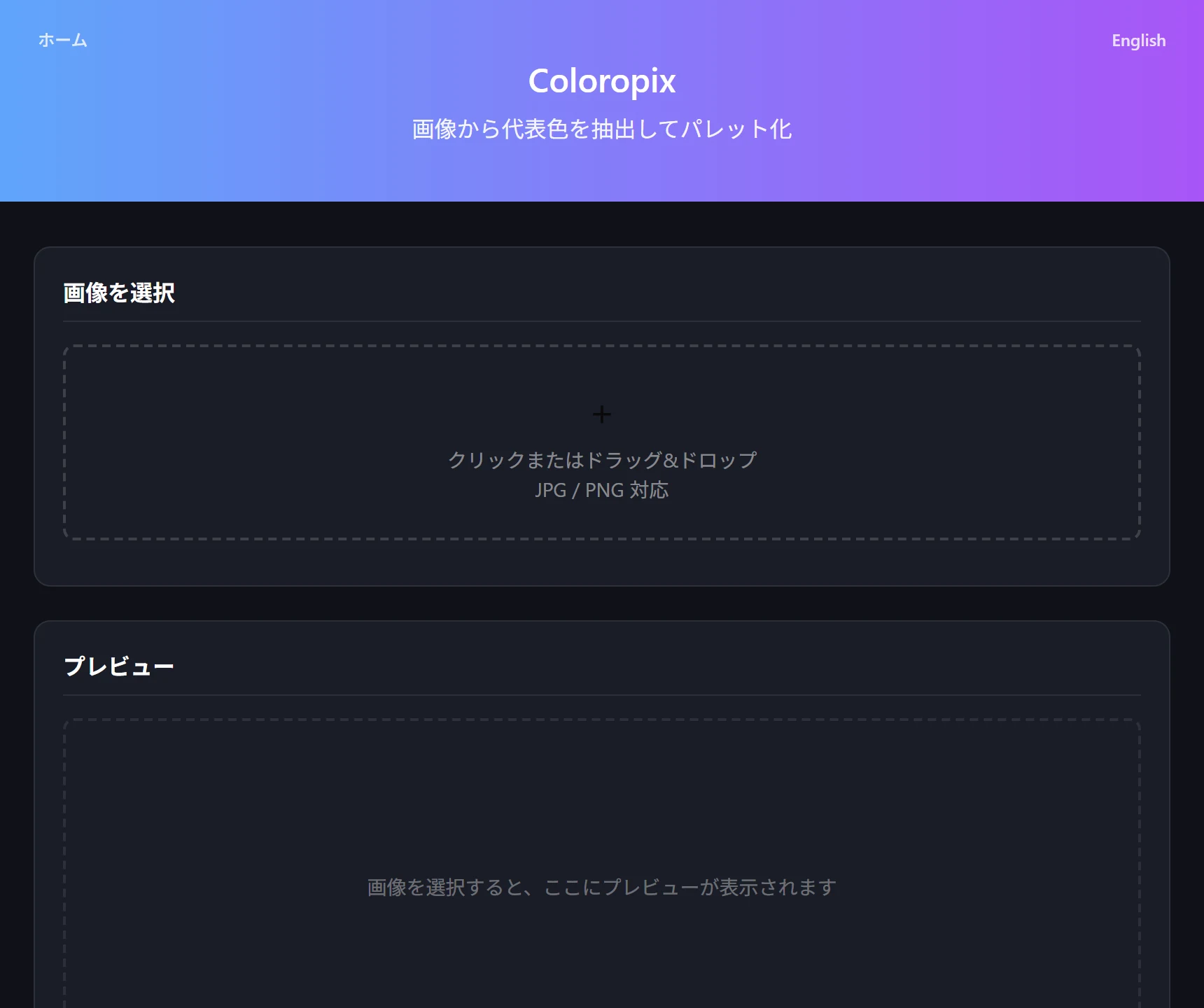
The free tool Coloropix automatically extracts representative colors from an image and supports copying hex / rgb and exporting to CSS variables or a Tailwind config. Everything runs locally in your browser with no external fetches.
The steps:
- Open Coloropix and pick the image to extract from
- Choose how many colors to extract (5–10)
- To extract from just part of the image, drag on the preview to outline a region (multiple supported)
- Copy each color as hex / rgb, or export the whole palette as CSS variables / a Tailwind config
Tips for getting the colors you want
Extracting from the whole image tends to surface large-area colors (like the background) as representative. To grab a target color — part of a logo or a specific area of the subject — drag on the preview to limit extraction to that region. You can specify multiple regions to pull colors element by element.
The population ratio (how much area each color covers) is shown too, which helps you tell the main color from accent colors.
Try the tool featured in this article — free, right now.
Use ColoropixFrequently asked questions
- Q. Can I use the extracted colors directly in development?
- A. Yes. You can copy each color as hex / rgb, and export the whole palette as a CSS-variables or Tailwind-config snippet, so you can paste it straight into your code.
- Q. Can I extract colors from just part of an image?
- A. Yes. Drag on the preview to outline a region and the palette is generated from that area only. You can specify multiple regions, and move, resize, or delete them.
- Q. Is my image uploaded?
- A. Coloropix does all color extraction in your browser and performs no external fetches at all — fully local. Your image is never sent to a server.