Published 2026-06-14
How to Merge, Split, and Reorder PDFs (Free, In-Browser)
Wanting to combine several PDFs into one, pull out just a few pages, or reorder pages that were scanned out of sequence — these editing needs come up all the time when working with PDFs. You don't need dedicated software; a browser is enough. This guide covers the basics of merging, splitting, reordering, and rotating PDFs, plus the exact steps with a free tool.
The four common PDF edits
Everyday PDF editing boils down to roughly four operations. Each has a different purpose, so figuring out which one you need first makes the work faster.
- Merge — combine multiple PDFs into a single file
- Split — extract only the pages you need as a separate file
- Reorder — change the order of the pages
- Rotate — fix sideways-scanned pages to the correct orientation
When you need merge and split
Merging is for when you want to combine chapter-by-chapter documents into one, or turn several scanned images into a single PDF. It's also handy when you're asked to submit everything as one file.
Splitting is the opposite — pulling just the pages you need out of a large PDF to share. You don't have to hand over the whole thing; you can cut out only the part you want the other person to see, which avoids oversharing.
Editing PDFs with just a browser
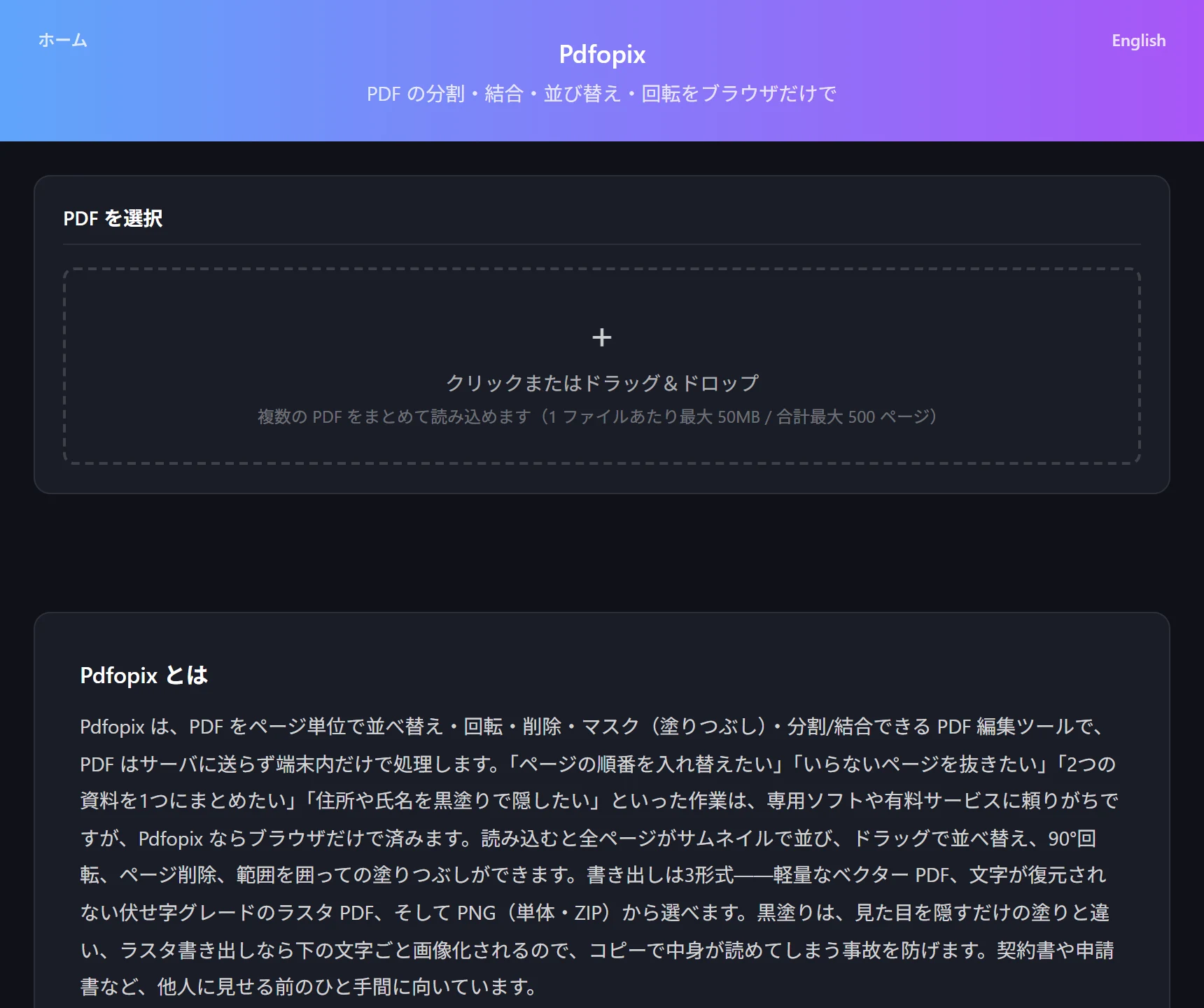
The free tool Pdfopix edits PDFs inside your browser without sending them to a server. Each page appears as a thumbnail you can drag to reorder, and click to rotate or delete. Load multiple PDFs to merge them; select only the pages you need and export to split.
The basic flow:
- Open Pdfopix and load the PDF you want to edit (load several to merge them)
- Drag the page thumbnails to change their order
- Delete unneeded pages; fix sideways pages with 90° rotation
- If needed, outline a region and fill it (mask) to hide it
- Pick an export format (vector PDF / raster PDF / PNG) and save
Choosing an export format
Pdfopix offers three export formats. Pick based on your purpose.
Lightweight vector PDF is best for normal saving. When you're masking confidential parts before handing a file over, choose the raster PDF, which leaves no text behind so the characters under your fill can't be extracted. When you want individual pages as images, use PNG (single file or ZIP).
- Vector PDF — lightweight; for normal saving and sharing
- Raster PDF — redaction-grade; text under masks can't be recovered
- PNG (single / ZIP) — when you want pages as images
A caution about masking (redaction)
When you fill areas to hide confidential information, pay special attention to the export format. If you only lay a black rectangle over the view, the PDF's underlying text data remains beneath it and can still be read via copy-paste or extraction.
Pdfopix's raster PDF export rasterizes the whole page before output, so no text remains under the mask. When you have information you truly need to hide, choosing raster PDF rather than vector is the safe option.
Try the tool featured in this article — free, right now.
Use PdfopixFrequently asked questions
- Q. Do I need to upload the PDF to a server?
- A. No. Pdfopix loads, edits, and exports PDFs entirely in your browser, so files are never sent to a server. Even confidential documents are safe to handle.
- Q. Can it edit password-protected PDFs?
- A. A PDF protected by an open password must first be decrypted with that password before loading. The browser can't read a file that's still locked, so unlock it before editing.
- Q. Is there a limit on how many or how large the PDFs can be?
- A. Processing runs on your device's (browser's) memory, so handling extremely large files or huge page counts at once can slow things down. If it feels heavy, process files separately or trim unneeded pages before merging.